







Collect Now
Lovense Sex Toys
The Leader in
Connected Pleasure
For Her


For Him



For Unisex
For Couples


Camming
Apps
Possibilities
If you have any questions
 Al bot
 Contact Us
Customer Favorites
Popular Searches
Popular Products
Help Us Improve!
When browsing our dildo selection, do you see the type(s) you're interested in?

I see dildo machines

I see vibrating dildos

I see thrusting dildos

I see suction cup dildos

I see dual-stimulation/rabbit dildos

I don't see the type I'm looking for!
Help Us Improve!
Please tell us more about the type of dildo you're looking for.
Thank you for your response
Leave your email so we can follow up on your feedback.
We respect your privacy and will only use your info for this survey.
 lovense webcam 2 guide
Video Guides
Set up Lovense Webcam 2 using OBS Studio + OBS Toolset
*Recommended for Lovense Cam Extension users
Set up Lovense Webcam 2 using Lovense Stream Master
Set up Lovense Webcam 2 using OBS Studio only
Note: Without OBS Toolset, you can only use gesture control zoom in/out and auto framing. We strongly encourage installing OBS Toolset to use advanced features.
Connect Lovense Webcam 2 to a Cam Site
Note: You must complete set up before connecting to a site.
Written Guides
Lovense Webcam 2 Hardware Set Up
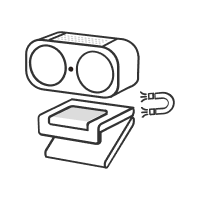
STEP 1
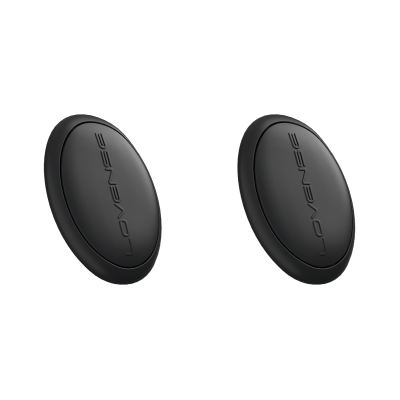
Attach your Webcam 2 to the magnetic mount (included).
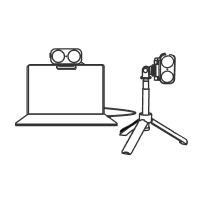
STEP 2
Clip the mount onto your computer screen.
Note: there is a 1/4 inch screw hold at the base of the mount to connect a stand/tripod (not included).
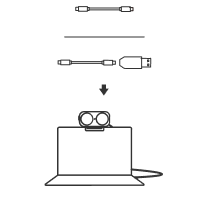
STEP 3
Connect the Webcam 2 to your computer using the USB cable (included). The green indicator light on the front of the camera will flash on once connected successfully.
Lovense Webcam 2 Software Set Up
A. Download Software
Please note: You must use OBS Studio to set up Lovense Webcam 2. After you have set up the webcam and activated your desired features, you may stop using OBS Studio if preferred.
Option 1: OBS Studio + OBS Toolset
For those using Lovense Cam Extension OR those who do not use Lovense Cam Extension/Stream Master:
Download both OBS Studio and OBS Toolset on your Windows PC or Mac. Once you download OBS Toolset, it will be integrated automatically into your OBS software.
Download here: https://www.lovense.com/cam-model/extension
Then open OBS Studio to get started.

Option 2: Lovense Stream Master
Download Lovense Stream Master which has OBS already built in.
Download here: https://www.lovense.com/cam-model/download

To open OBS, simply go to the "Home" tab and click the pink "Open Built-in OBS" button.

B. Set Up Lovense Webcam 2
Click the "+" button under the "Sources" tab and add "Lovense Webcam 2" as a new video capture device.


Gesture Control: Zoom In or Zoom Out (Optional)
In the OBS Lovense Webcam 2 Settings panel, click the "Advanced" tab and turn on both the "Gesture Settings" and "Zoom" toggles.

Then show your face and palm to the camera. When the webcam light flashes, the zoom feature is enabled. The camera will now respond to your hand gestures.
To zoom in:
1. Show the L gesture and your face to the webcam.
2. Move your hand up and hold.
3. The light will flash and the camera will zoom in.


To zoom out:
1. Show the L gesture and your face to the webcam.
2. Move your hand down and hold.
3. The light will flash and the camera will zoom out.


Enable Auto Framing (Optional)
The Auto Framing feature adjusts to keep your face centered at all times, even as you move around the camera frame. This feature supports single or multi-person framing.
In the OBS Lovense Webcam 2 Settings panel, click the "Advanced" tab and turn on both the "Gesture Settings" and "Auto Framing" toggles. You can use this feature with or without Zoom enabled.

Raise your palm when your face is in the frame. The camera will turn the Auto Framing feature on or off.

Note: There are two Auto Framing toggles - one under Gesture Settings and another under Other Settings.
· If the top Auto Framing toggle is on, it means you can turn auto framing on or off with your palm.

· The bottom simply shows whether Auto Framing is currently enabled or not (toggle on means enabled, toggle off means disabled).

Enable Virtual Camera
To finish setting up your webcam, click "Start Visual Camera" under the Controls panel. This will allow you to share your display with external sites or apps as described in the next section.

C. Connect to Livestream Site
Option 1: Livestream with OBS
If you want to livestream with OBS Studio, you can open the livestream site and select "OBS Virtual Camera" or "Lovense OBS Virtual Camera" from the dropdown menu.

Option 2: Livestream without OBS
Once you have set up your webcam and activated your desired features, you may stop using OBS Studio if preferred. Simply open the livestream site and select "Lovense Webcam 2" from the dropdown menu.
Note: On this interface, you can only use Auto Framing and Gesture Control as additional features.

D. Optional Features
*OBS Studio + OBS Toolset OR Stream Master Required
1) View Adjustment
Users can manually adjust the camera frame and then move freely within the frame.
Locate the Lovense Webcam 2 Settings panel in OBS Studio. Click the "View" tab, then move the green box around to change the frame, or use the slider to zoom in or out.

2) Set Your Audio Mode
In the OBS Lovense Webcam 2 Settings panel, click the "Advanced" tab and scroll down to the "Audio Mode" section. You can choose between:
· Voice Focus: Highlight the sound of your voice and minimize background noise.
· Noise Cancellation: Filter out nearby voices and background noise in busy environments.
· Music & Voice Balance: Balance the sound of your voice with external background music.

3) Set Your Display Color
Under the Lovense Webcam 2 Settings panel, select the "Effects" tab to adjust your camera display. Under the "Color Presets" tab, you can save different camera display settings. To save a new Color Preset, first adjust the display color as desired, then click "+" to name the preset and save.


4) AI Zoom
When AI Zoom is enabled, the camera will follow a selected target—either the body or the head—and adjust the frame accordingly. You can use this feature with or without Auto Framing.
· Half-Body: Sit in a chair and show half your body.
· Head: Sit in front of the camera with your face visible.
Note: The Full Body setting is not yet supported.

5) HDR
The HDR setting improves the color and contrast of your camera display. Enabling this feature will offer a more detailed and realistic video quality.
In the OBS Lovense Webcam 2 Settings panel, click the "Advanced" tab, scroll down to "Other Settings" and then turn on both "Camera Focus" and "HDR" toggles.

6) Remote Adjust (Mobile Control)
You can also control Lovense Webcam 2 using the "Remote Adjust" feature via your phone.
In the Lovense Webcam 2 Settings panel, click the "View" tab and then click "Remote Adjust" to view the QR code.


Scan the QR code with either the Lovense Connect app (2.8.6 or newer for iOS and 3.0.2 or newer for Android) or your phone camera.
Please make sure your mobile and PC are on the same Wi-Fi network.

After scanning the QR code, you will be able to see the remote adjust panel in your mobile browser or Lovense Connect app.
Via the mobile interface, you can easily:
1) Enable or disable Auto Framing.
2) Add Preset Positions to automatically switch camera positions when users tip the required amount. Click the "+" button to add a new position. Next, enter the desired tip amount and zoom duration.
3) Use the View Adjustment panel to manually adjust your camera. Use the slider below to zoom in or out.

Click the gear icon to view advanced settings.
· Under the "Advanced" tab, you can enable AI Zoom, Gesture Settings, or HDR.
· Under the "Effects" tab, you can adjust the display color or save different display settings under "Color Presets".


E. Tip-Activated Features
*Lovense Cam Extension OR Stream Master Required
Models can preset different camera positions in OBS via the "Tip-Activated Functions" section. Once a viewer tips the required amount, the camera will zoom in or out accordingly.
Add a New Position
First, adjust your camera via the View Adjustment panel (e.g. you can focus on a desired body part or zoom in on your face). Once you have your desired position, click the "+" button next to "Preset Position" and enter your desired token amount and zoom duration. Next, click the "OK" button.


Connect to Lovense Cam Extension
a) Log into Lovense Cam Extension.

b) Click your desired cam site tab, click the "Video Feedback" tab, and then click the toggle next to "Video Feedback Configuration".

Send a Test Tip
Go to your broadcasting page and send a test tip via the Lovense Widget to check if your tip-activated feature is working.


Lovense Webcam 2 will zoom in or out to the preset position.

The camera frame will return to the default position after the zoom duration ends.
Stay in touch with your pleasure!
Sign up for our newsletter to never miss exclusive deals, new releases, and giveaways. You'll also get instant access to our free Lovense Pleasure Bible.
 Thanks for subscribing!
The email address is not valid. Please try again.
Thanks for subscribing!
The email address is not valid. Please try again.
You can unsubscribe at any time using the link in the newsletter. By clicking on the sign-up button, you agree to our Terms of Use and Privacy Policy.
Age Disclaimer
At LOVENSE, we are dedicated to providing a safe and responsible online environment for adults. We take our responsibility seriously and comply with all relevant regulations and guidelines.
All models featured on our website are 18 years or older. By accessing and using our site, you confirm that you are at least 18 years old and understand and accept the content on our site. If you experience any issues with our site, email our team at [email protected].
For information on the Custodian of Records required, please refer to our U.S.C. §2257 Compliance Notice.

Select Coupon
Not available
OFF
Applies to [toyname] only For orders over [amount] Valid till - [date] For orders over [amount] and new users only Collect Now Use Now Check Coupons Continue Shopping From [coupon activity name] campaign (CST) Expired Shop with Coupon Not available Buy with Coupon Apply Applied Code: Copy CodeCoupons not applicable to Christmas Gift Boxes,Lovense Webcam,Lovense Sex Machine, Lovense Mini Sex Machine,Gush2,Osci 3.
Lucky Buyer Discount

For your order over {0}
Expires in :
Coupons not applicable to Christmas Gift Boxes,Lovense Webcam,Lovense Sex Machine, Lovense Mini Sex Machine,Gush2,Osci 3.
My coupon(s)
Your order can't be automatically tracked because the sign-in email doesn't match.
How to resolve:
1. Visit 'My Orders'
2. Enter your order details manually
Missing your order number?
Contact Us








Freebie
Black Friday
Toys recommended by your friends
Discount
For orders over {0}
Claim Coupon(s)
Check out this toy
Go shopping
Congratulations
Your friend give this coupon to you,hurry up and get your coupons!
Your friend just made an order, you get a coupon!
Sorry, you are late. The current coupon has been claimed by someone else.
Sorry, you are not eligible to receive coupons
Only new users are allowed to receive coupons
Your friend just made an order, you get {0} coupons!
Sorry, please check if your account is correct.
Go check account
You have already received the coupon, go use it now
You have successfully received the coupon, use it now
Please come back in {0} days
The current order does not meet the activity conditions of
"order received"
OK
Congratulations
The mystery prize will be sent out after the order is signed.
OK
Sorry, you didn't win the free order.
Explore more exclusive deals
Once the order is received, we will send your refund.
Once the order is received, we will send your refund.
Your friend has visited the website and you can receive a {0} coupon!
Coupons not applicable to Christmas Gift Boxes,Lovense Webcam,Lovense Sex Machine, Lovense Mini Sex Machine,Gush2,Osci 3.
You Got a {0} Coupon!
Email me a reminder before it expires!
Referral Link Unavailable
This link is expired. Please try another link.
OK
What You May Like
You can unsubscribe at any time using the link in the newsletter. By clicking on the sign-up button, you agree to our Terms of Use and Privacy Policy.
Submit
Enter your email
The Deeper,
The Stronger
60% OFF
New Mission 2
Equipped with depth sensors that intensify vibrations when deeper inserted.
Discover

Email Address
Code
If you encounter any issues, please email our team at [email protected]
We’ve detected a potential security issue with your account. To protect your data, please reset your password now.

You're already on the list! We'll notify you once the Lover Set is back in stock.

Unauthorized Domain
The domain you are currently visiting is NOT an official Lovense website.Please navigate directly to our official site: https://www.lovense.com
Copy Official Link
 Coupons

FREE shipping


We’d love your feedback
Take a quick 5-second survey, thank-you!
Start NowHow did you first hear about Lovense?

Manage Cookies Settings
Cookie is a small file that, when saved on your device, can provide specific functionality support for Lovense websites and online services. On our website, we use the following types of Cookies. For detailed information, please refer to our Lovense Cookie Policy.
Strictly Necessary Cookies
These cookies are necessary to ensuring that our Website and Apps work properly for visitors and registered users, such as maintaining security, authentication, and logging in, and ensuring the ability to securely complete transactions. These cookies cannot be switched off in our systems. You can set your browser to block or alert you about these cookies, but some parts of the site will not then work. These cookies do not store any personally identifiable information.
Functional Cookies
These cookies enable our Website and Apps to provide you with enhanced functionality and personalization. They are used to remember your account and preferences over time, such as keeping yourself logged in when returning, maintaining your choices on how you want the Website to appear (including keeping track of your preferred language and country), and customizing content based on how you use our services. If you do not allow these cookies, then some or all of these services may not function properly.
Performance and Analytics Cookies
These cookies help us understand how visitors interact with our Website and Apps by providing performance data on how our services are functioning, including data on site functionality and speed to help us optimize the Website, how the Website is used to help us improve your experience, and detecting and gathering reporting on bugs. All information these cookies collect is aggregated and therefore anonymous. If you do not allow these cookies, we will not know when you have visited our site and will not be able to monitor its performance.
This order has been cancelled.
We will initiate a refund that should reach you within 7-10 working days.
This order has already been shipped out. You can’t cancel it now. Please contact us for further assistance.
For a better experience, we suggest you upgrade your browser or using other browser.